Features
Everything a password manager should do. Nothing it shouldn’t.
Apps for macOS, Windows, Linux, BSD, iOS, Android and the web, a browser extension and a command-line tool, all built from one open-source Rust codebase.
Take a look
Designed to stay out of your way.
The same app on every platform, in light and dark, in English and Dutch.
-
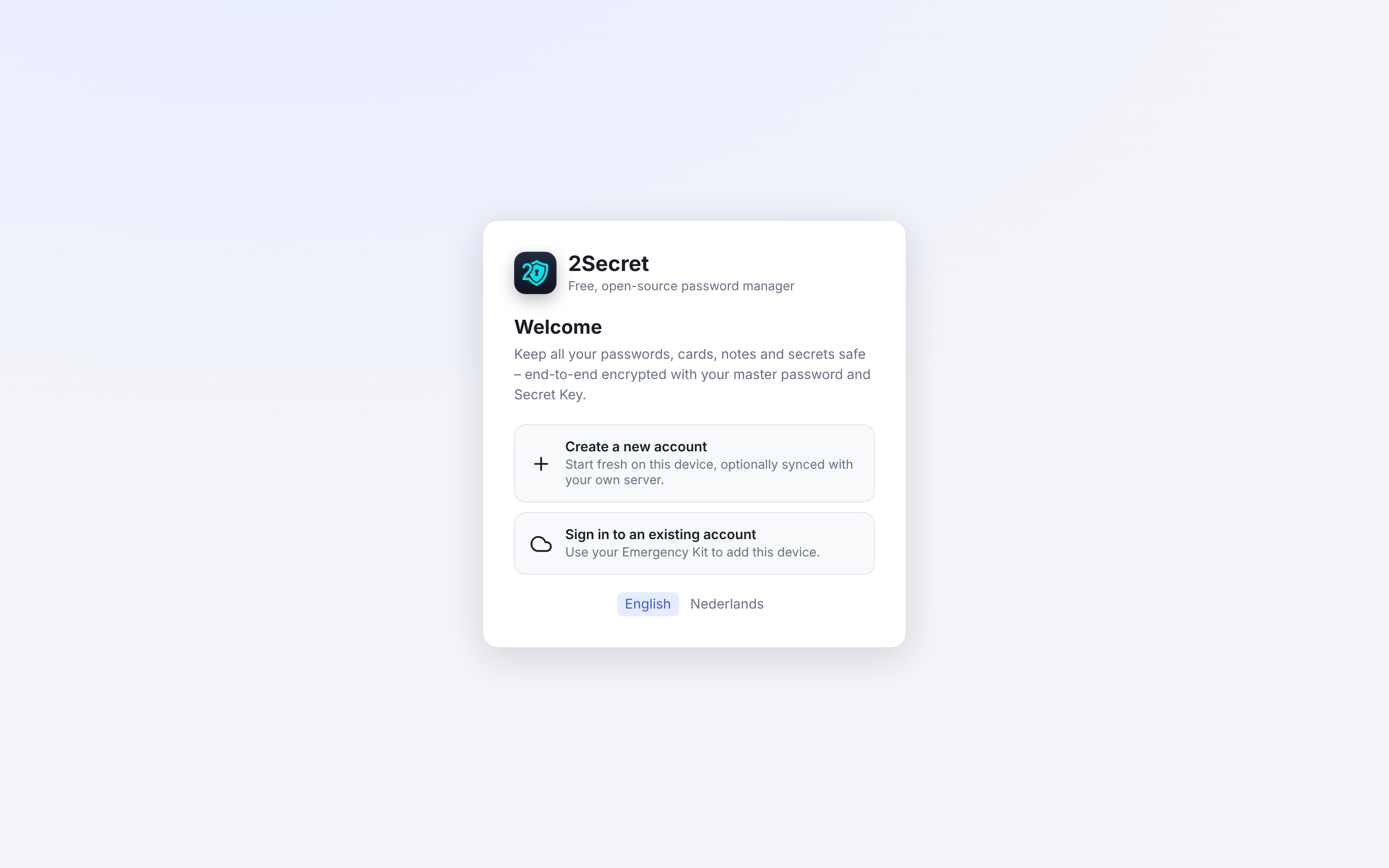
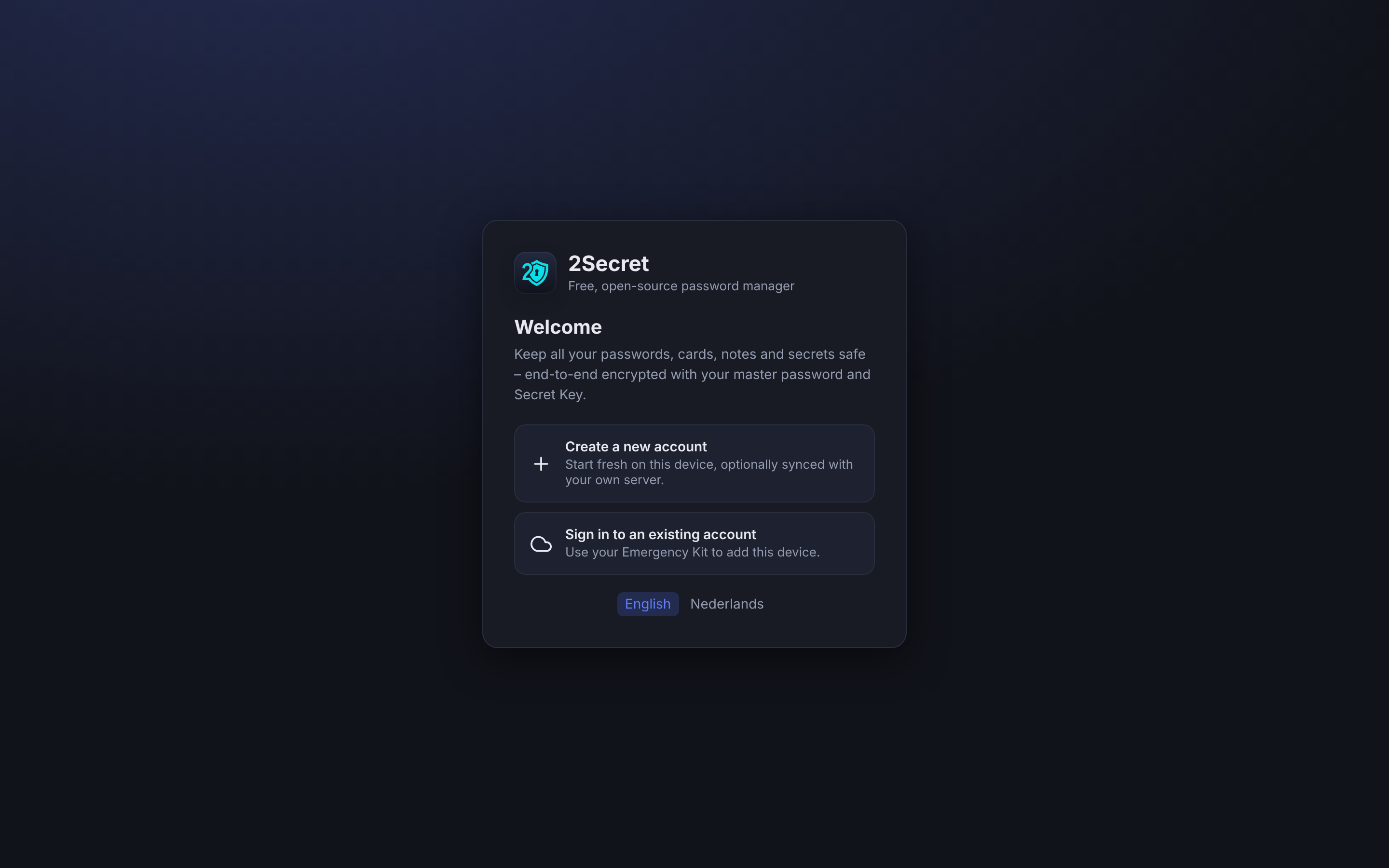
Welcome screen -
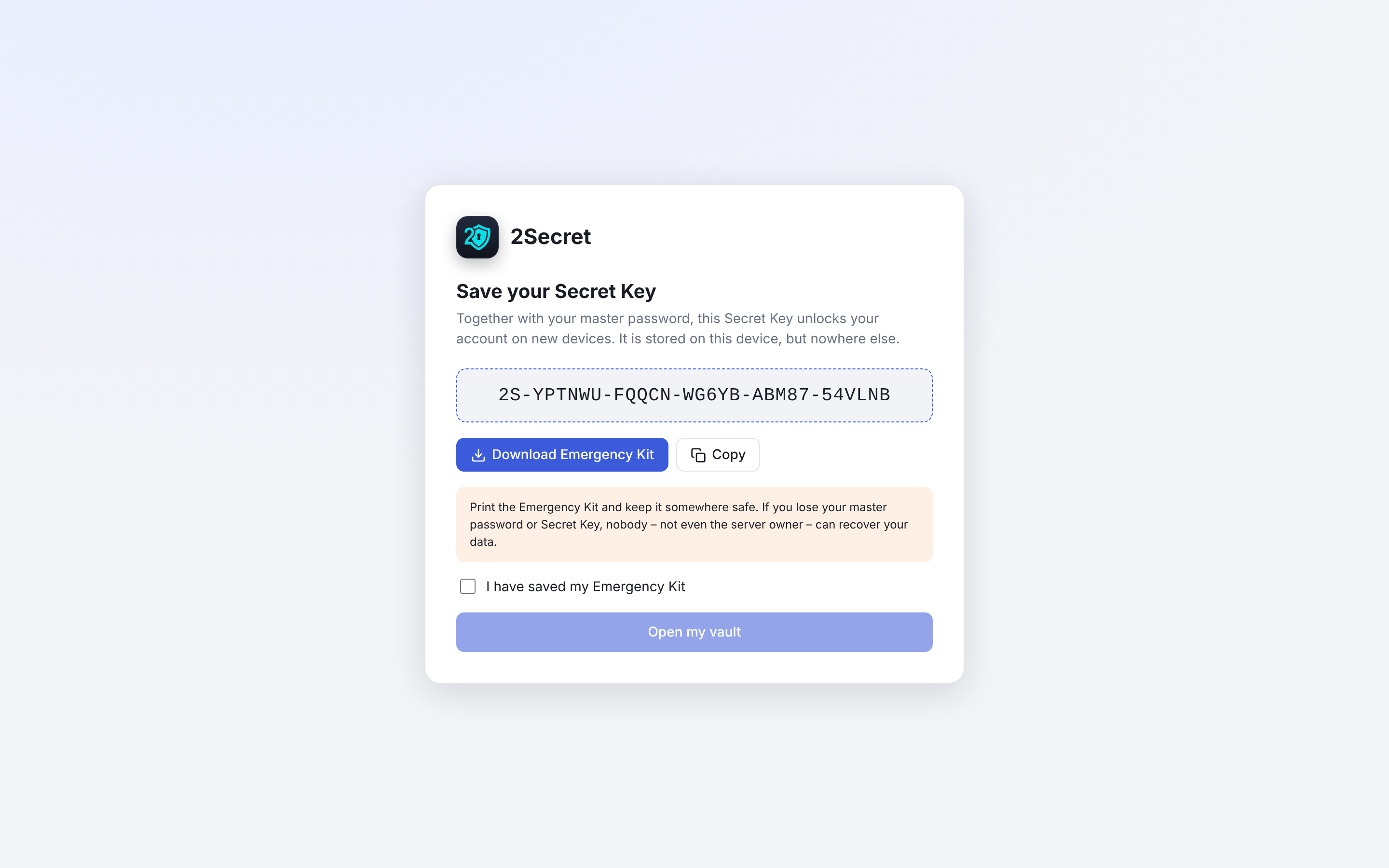
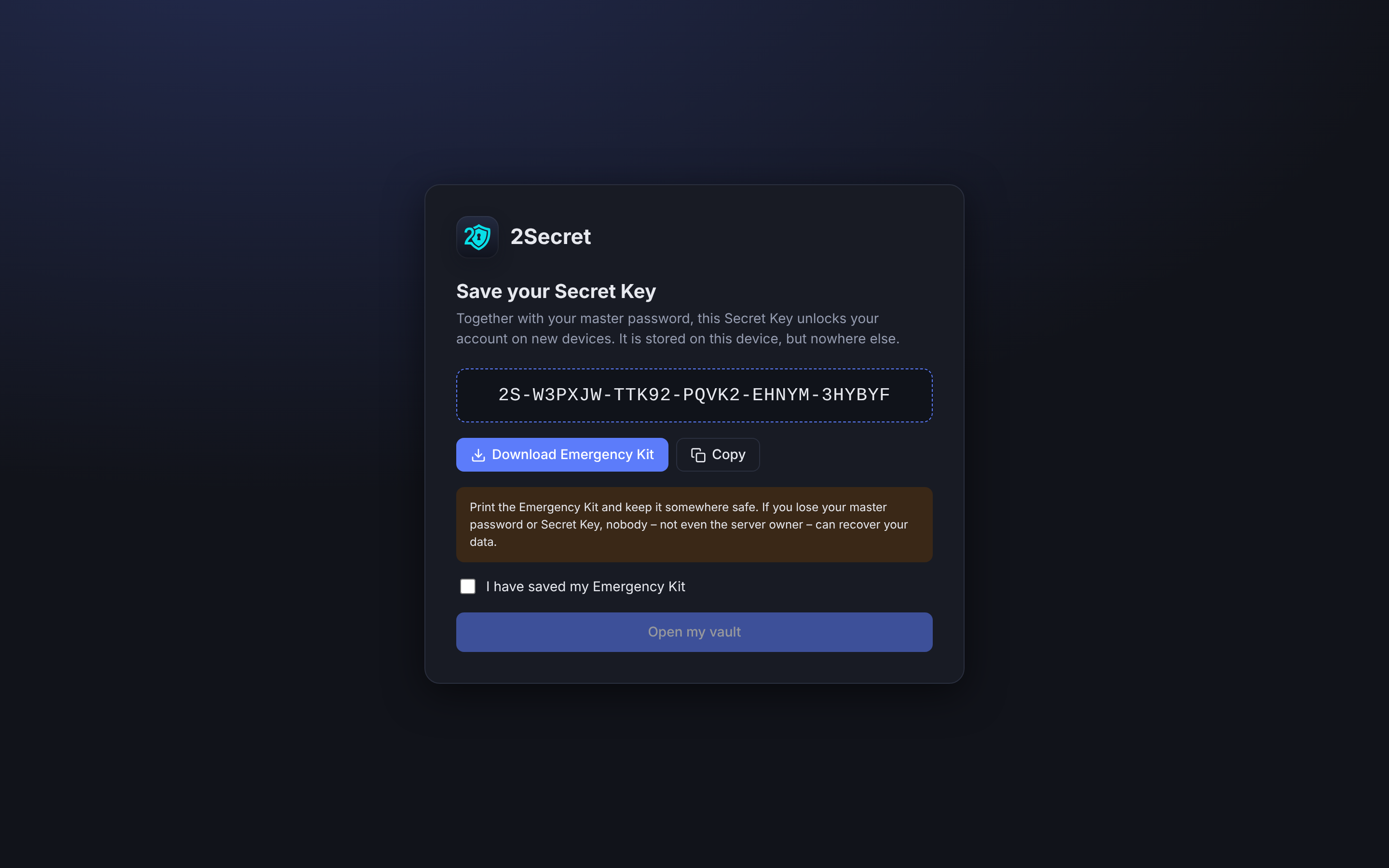
Your Secret Key and Emergency Kit -
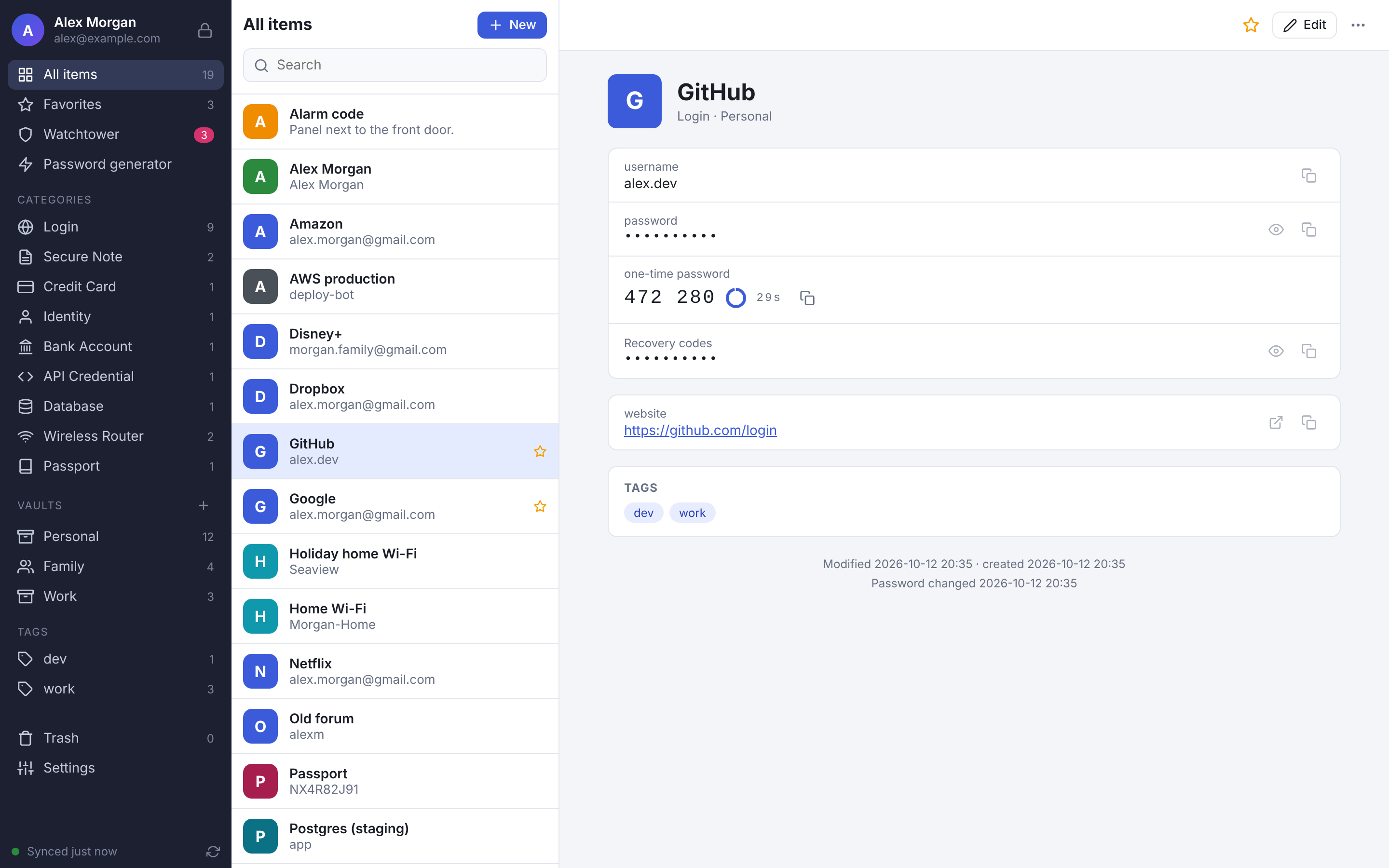
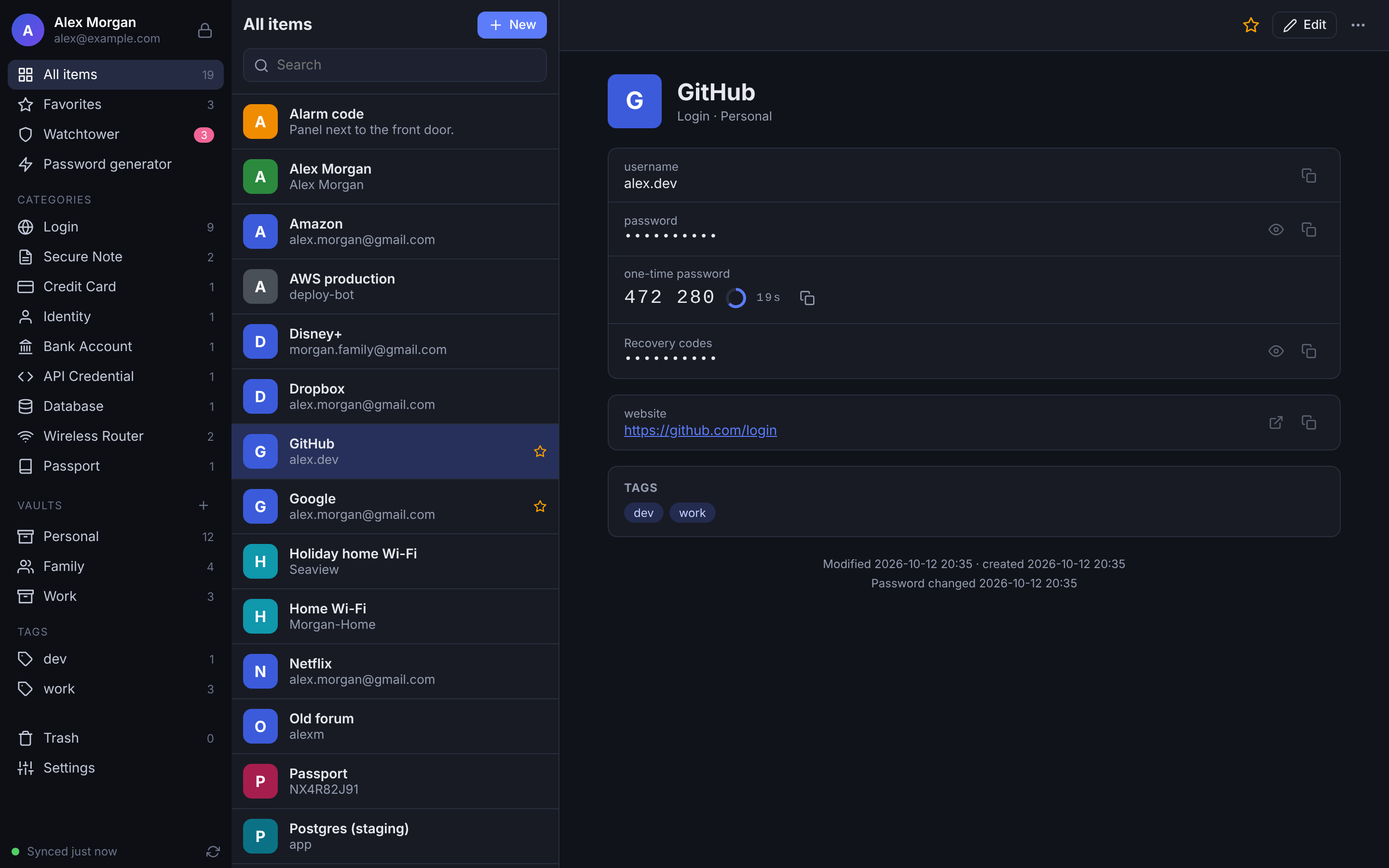
Item details with a live one-time code -
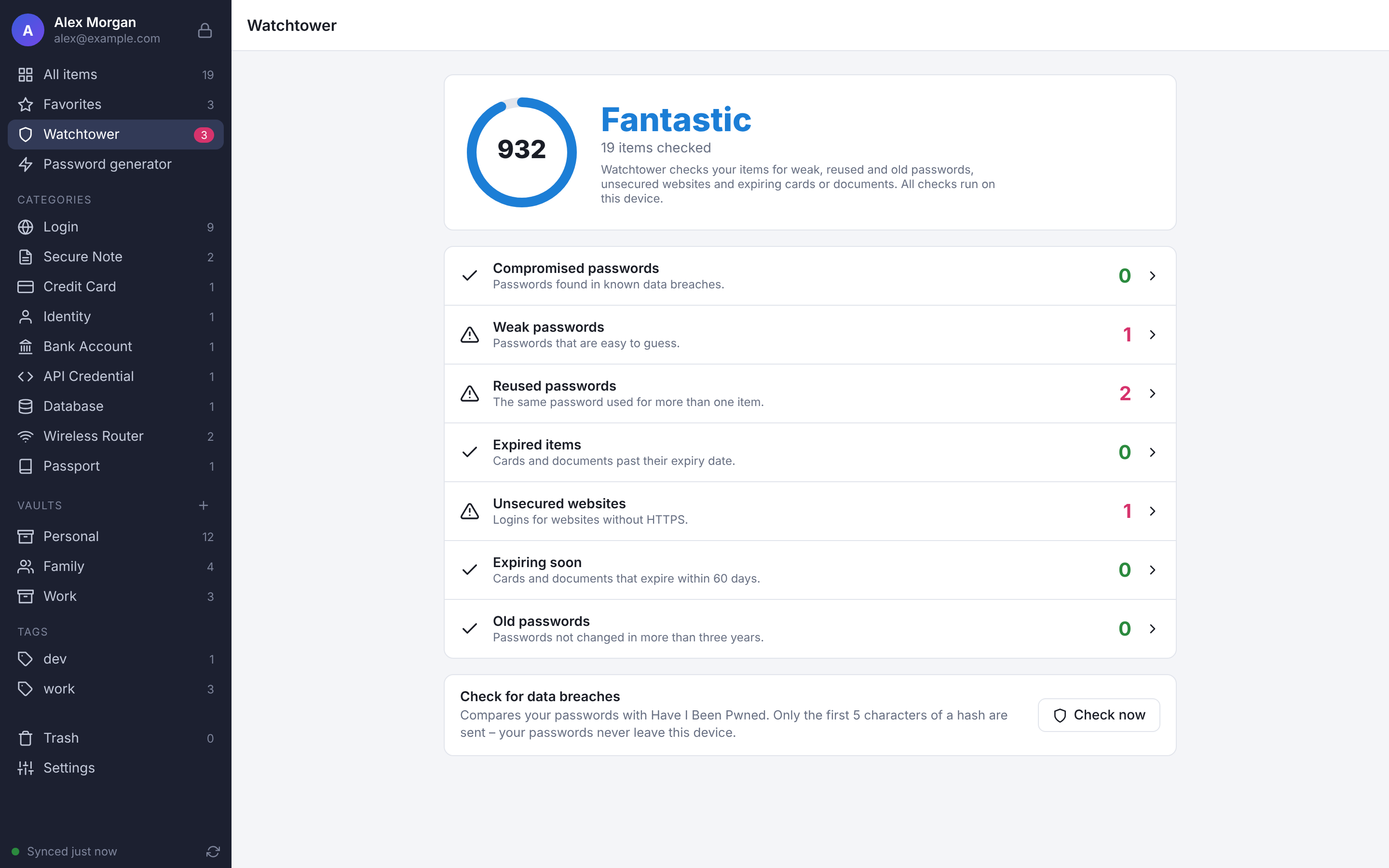
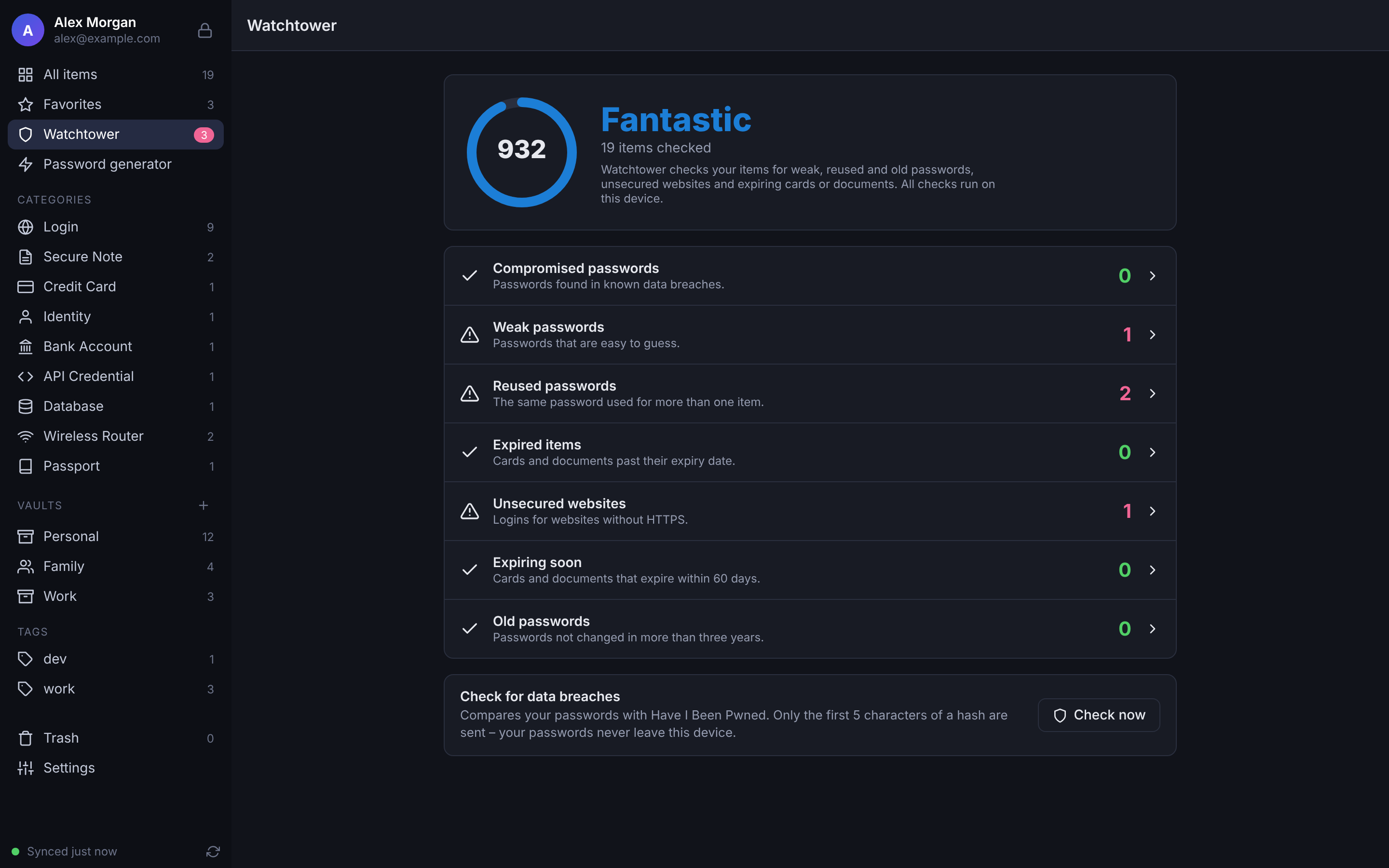
Watchtower finds weak, reused and unsafe passwords -
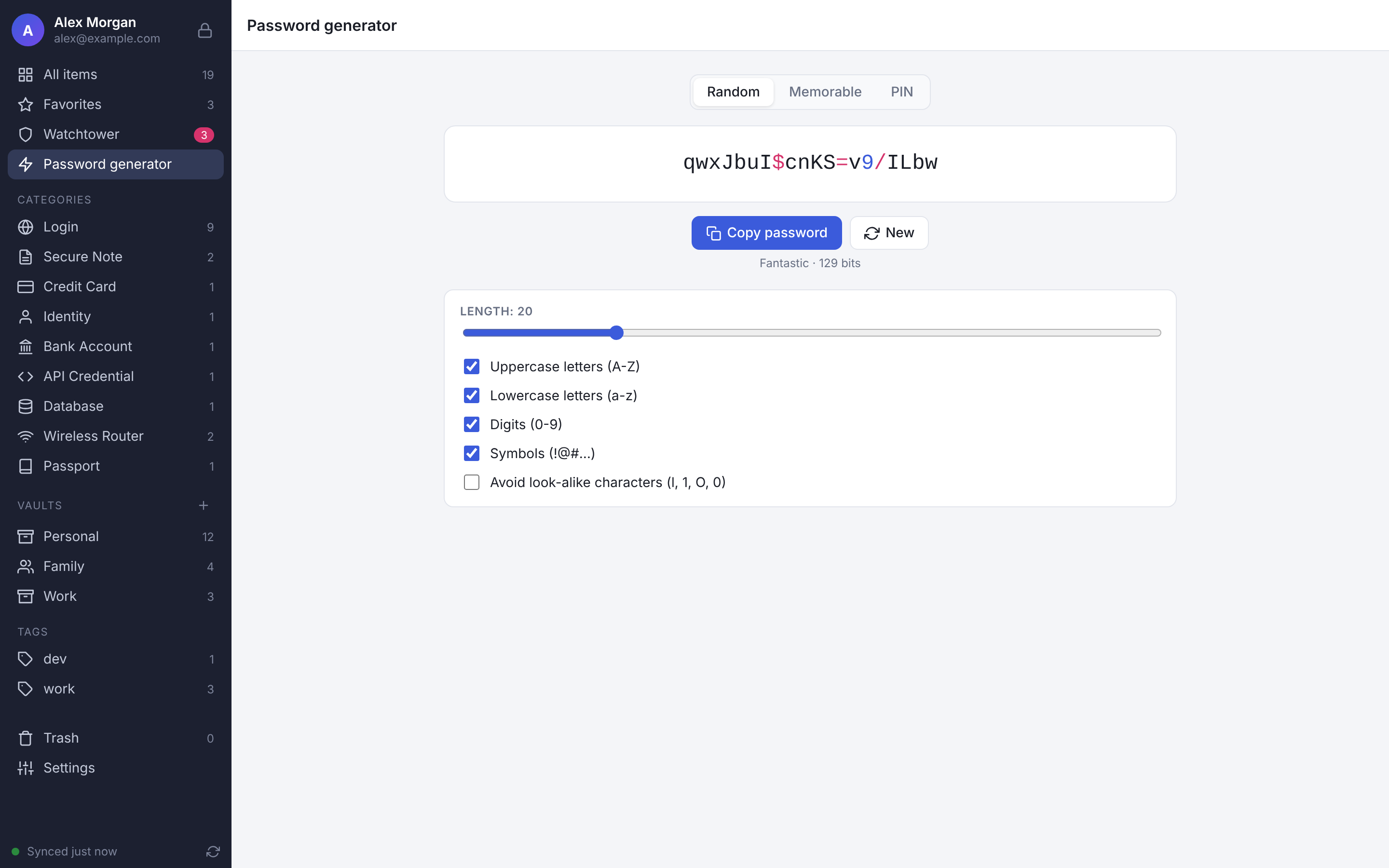
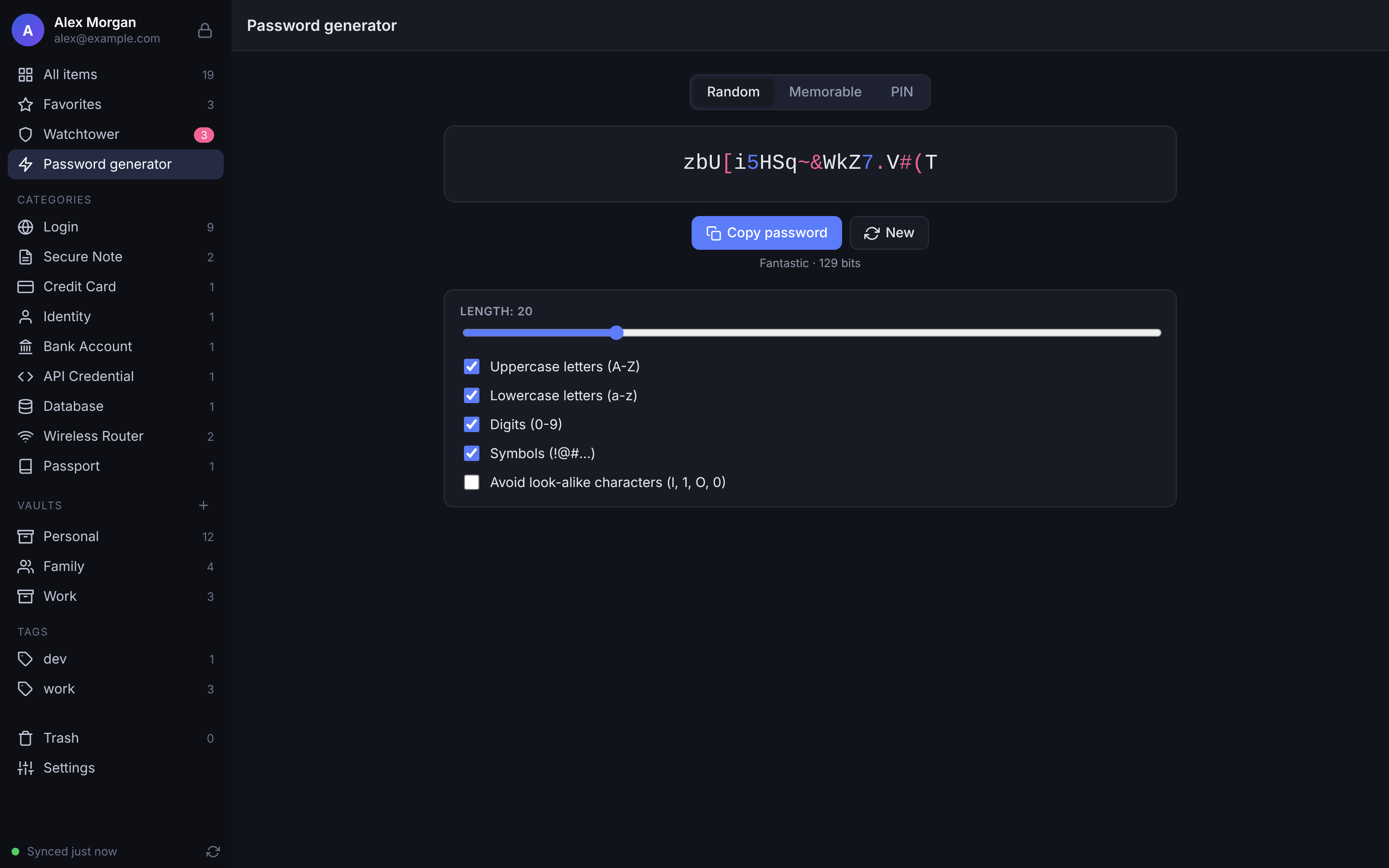
Password generator -
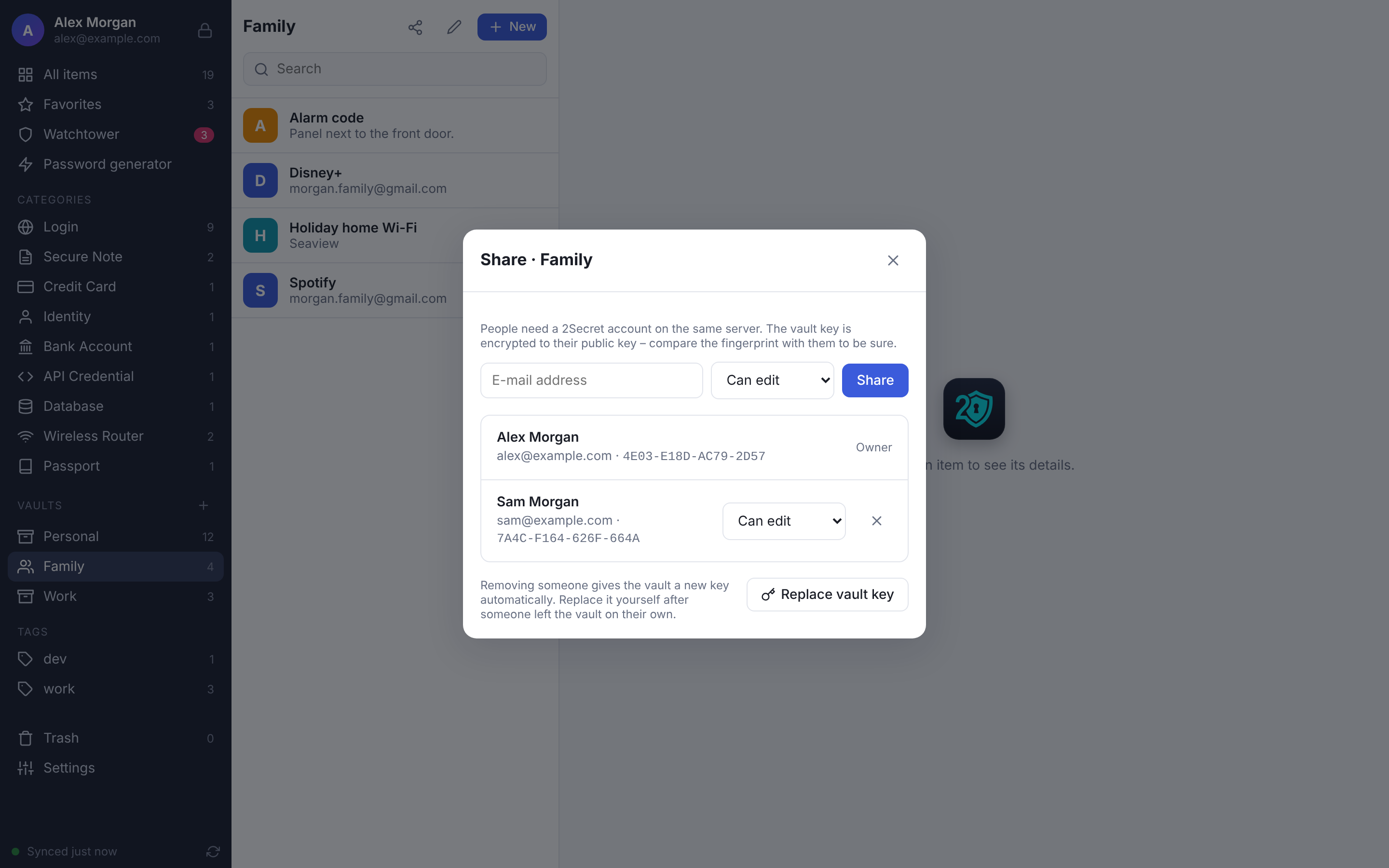
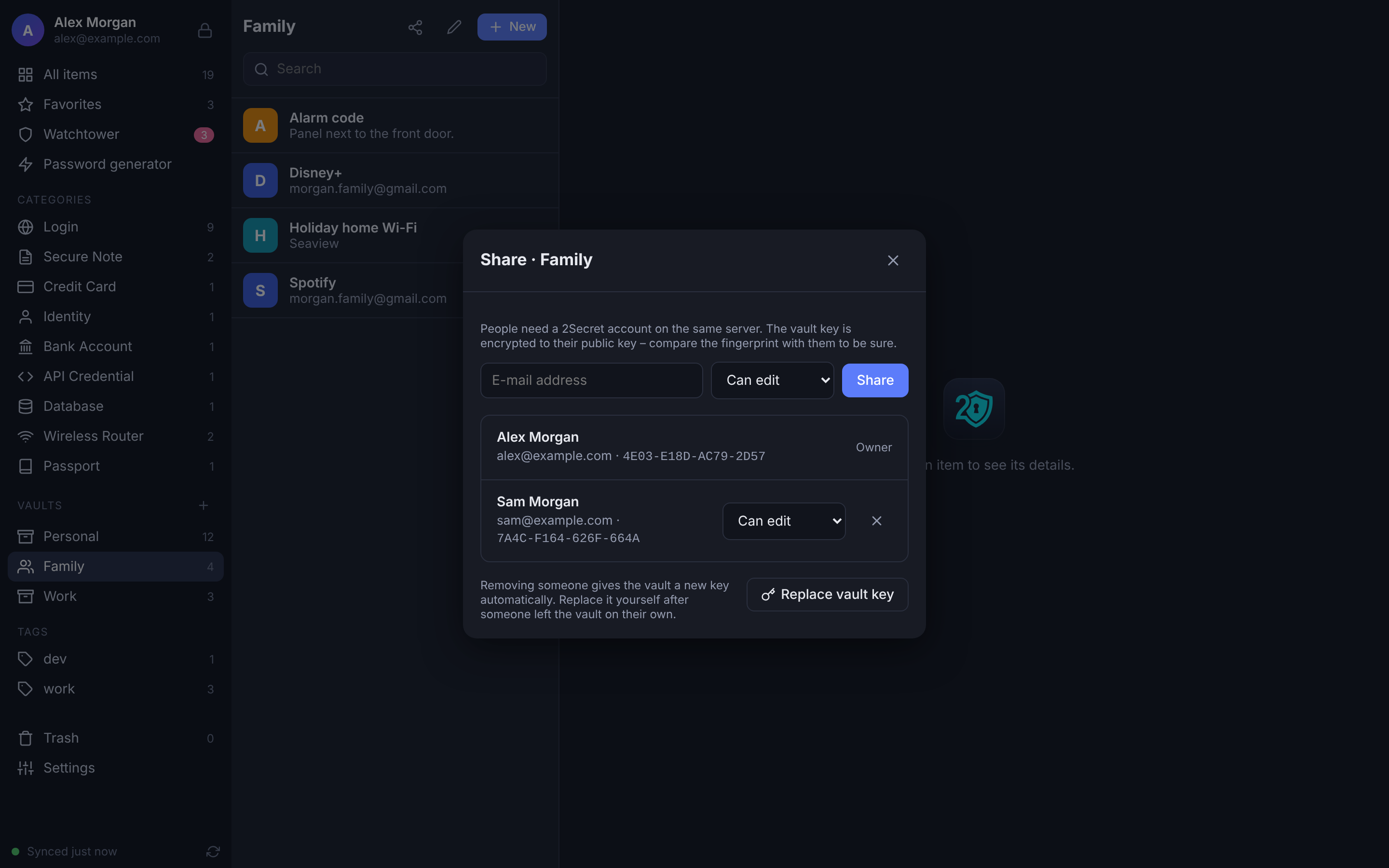
Sharing a vault, with key fingerprints -
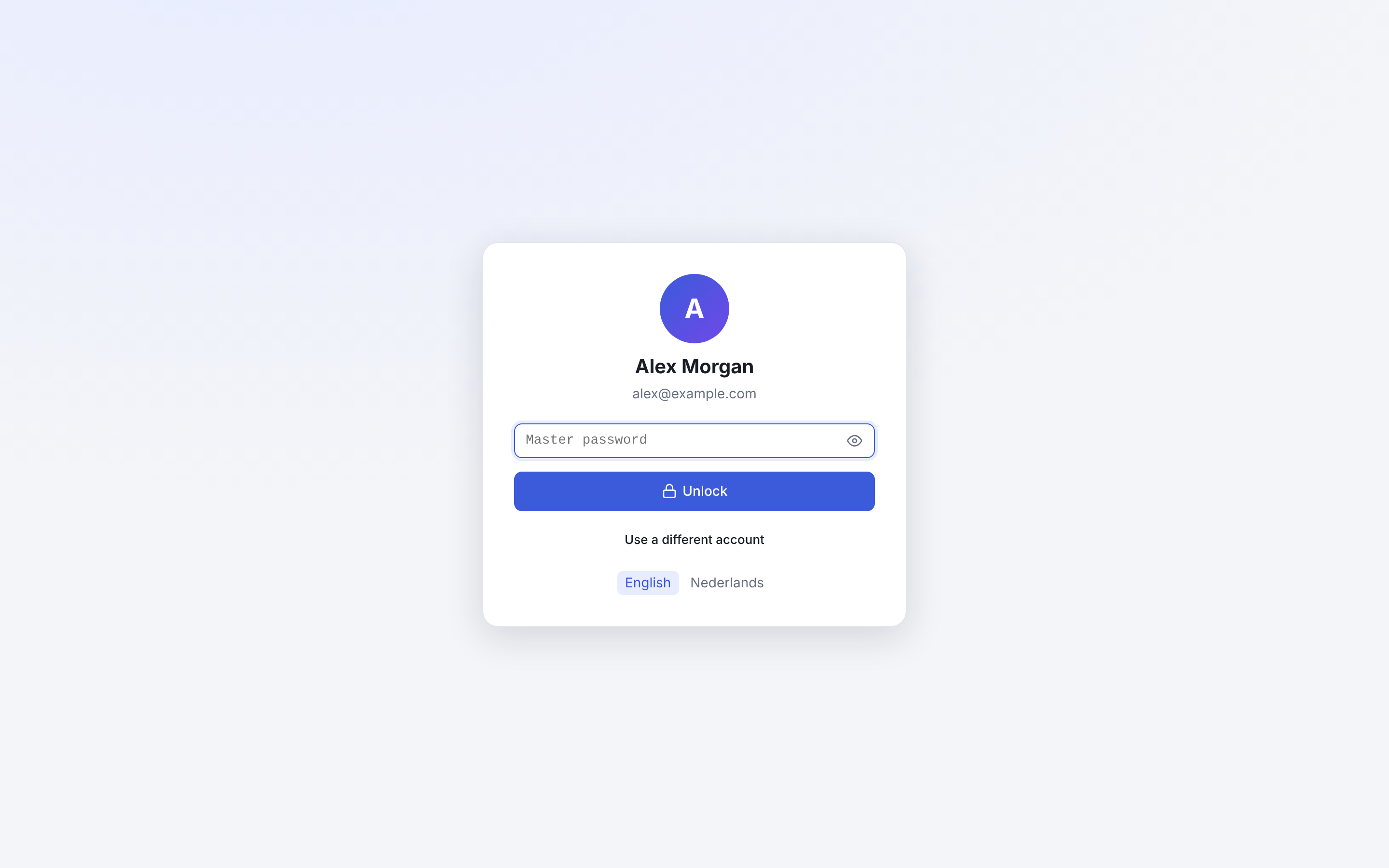
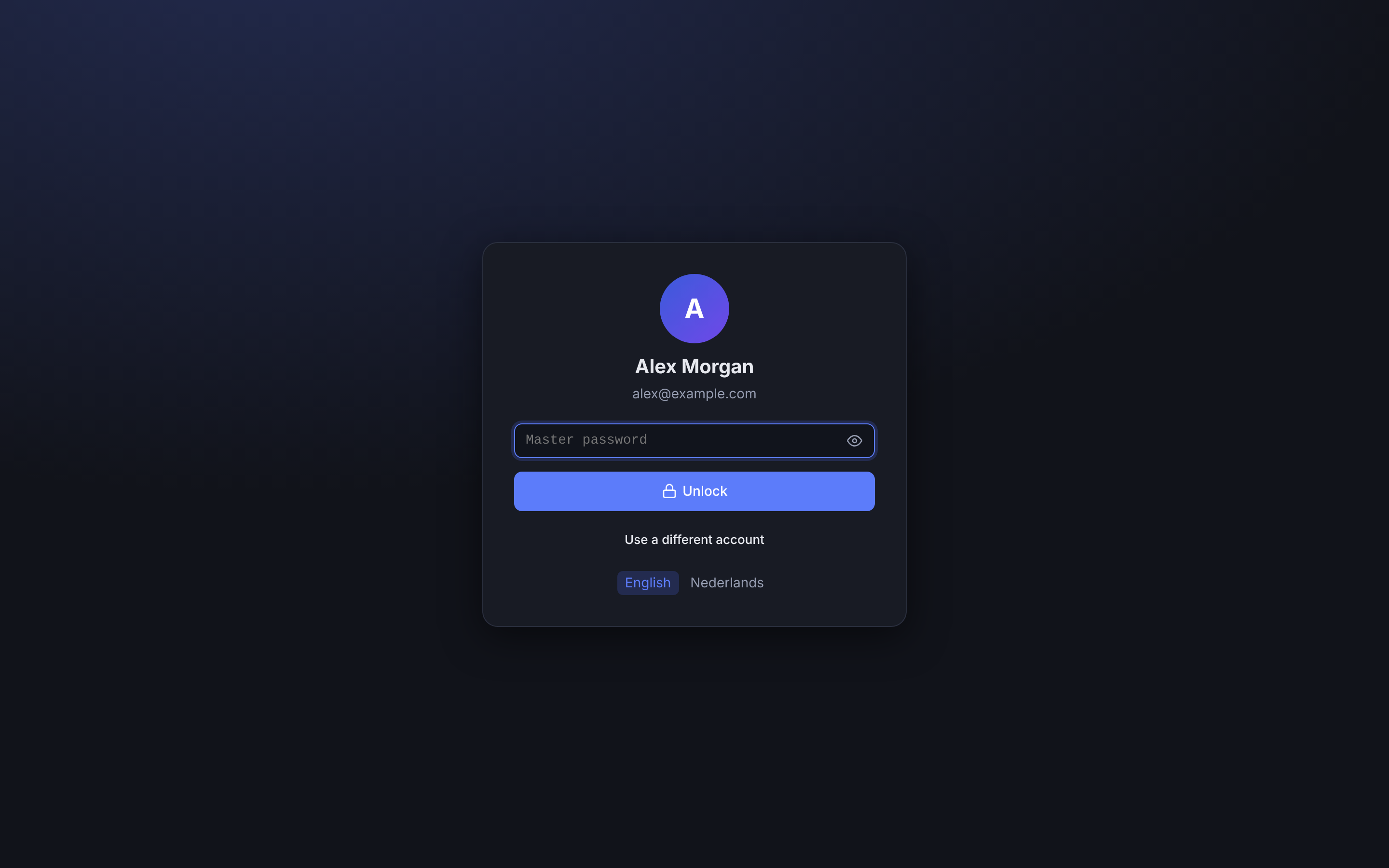
Locked vault -
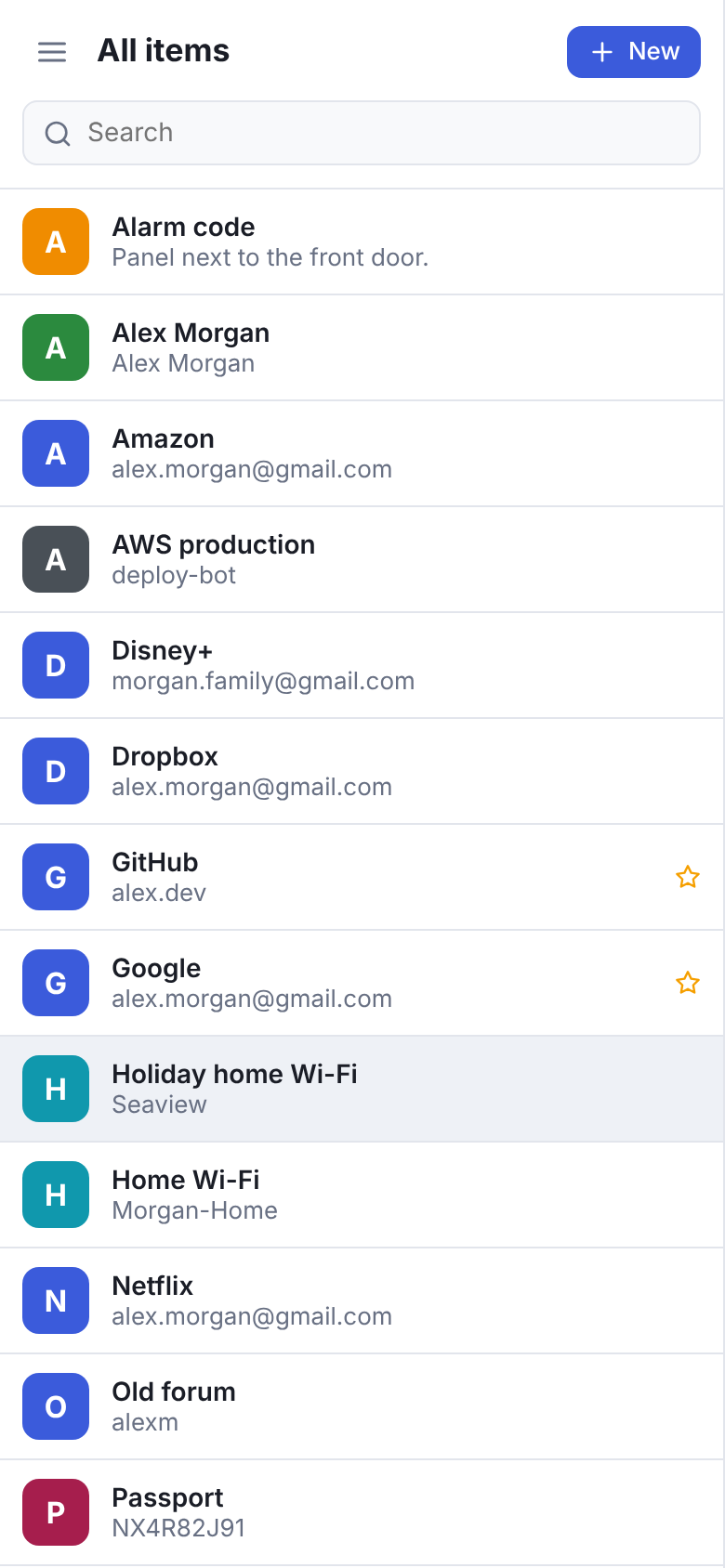
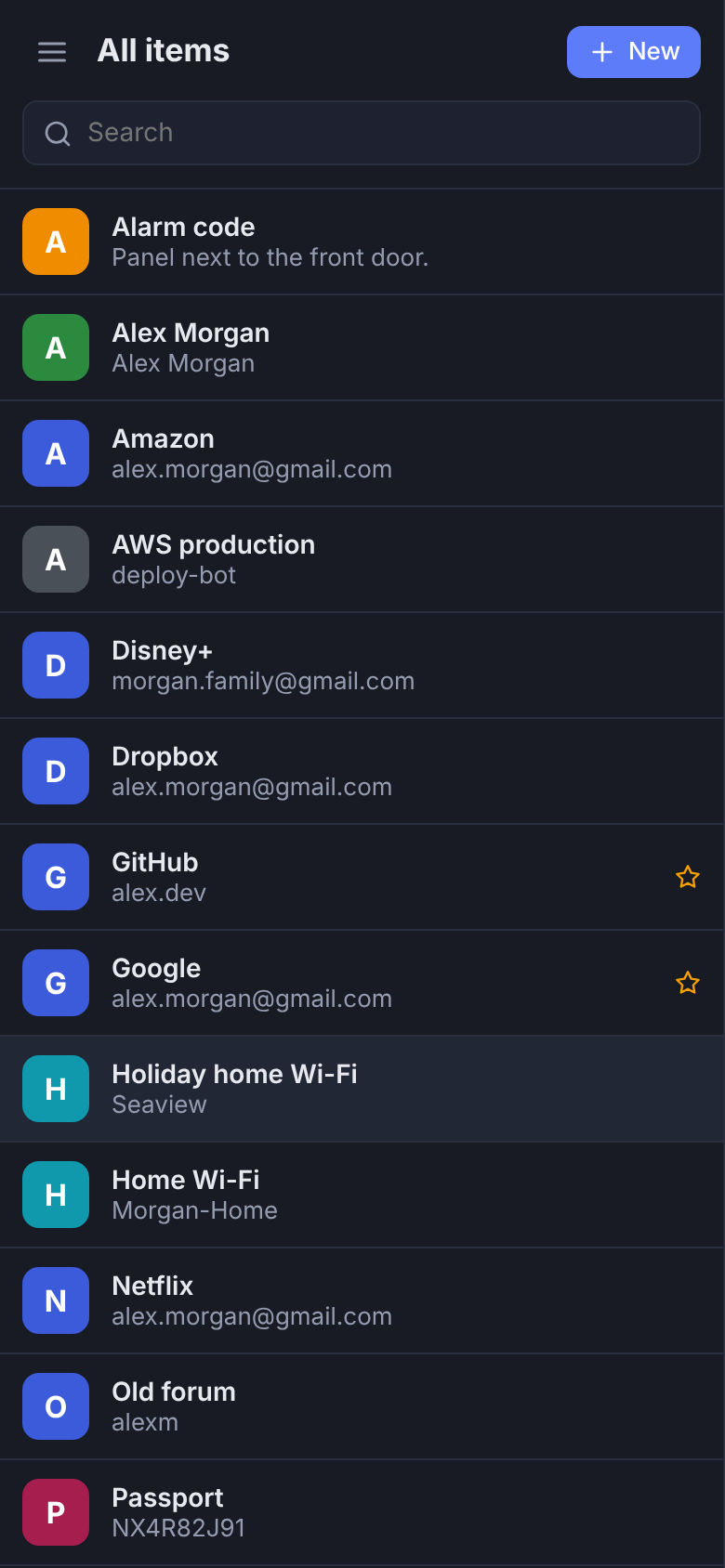
All items on a phone
Your vault
One vault for logins, cards, documents and keys.
Keep everything in vaults: one for yourself, one for the family, one for work. Each vault has its own encryption key.
- Custom fields for anything that doesn’t fit a standard field
- Tags and favourites to find things quickly
- File attachments up to 5 MB, encrypted with the item
- A trash, so a deleted item can come back
- Auto-lock, and the clipboard clears itself after copying a secret
19 item types
The right fields for every kind of secret.
-
Logins
Username, password, websites and a one-time code.
-
Cards
Card number, expiry date, verification number and PIN. Watchtower flags a card before it expires.
-
Identities
Name, birth date, e-mail, phone, address and company in one place.
-
Bank accounts
IBAN, BIC, account details and the PIN that goes with them.
-
Crypto wallets
Recovery phrases and wallet details, encrypted on your device.
-
SSH keys
Store keys, or generate a new Ed25519 key right in the app. On the desktop,
sshandgitcan use them. -
API credentials
Tokens and keys, also readable from the CLI.
-
Documents
Passports, licences and the files that belong to them.
Watchtower
Find the weak spots before someone else does.
Watchtower checks your vault on your device, gives it a score and lists what needs attention.
- Weak, reused and old passwords
-
Websites that still use unencrypted
http - Cards and documents that have expired or expire within 60 days
- Optional Have I Been Pwned check with k-anonymity: only the first 5 characters of a hash are sent, never a password
Generator
Strong passwords you don’t have to think up.
Generate random passwords, PINs and passphrases, with a strength estimate. Passphrases use the EFF wordlist: easy to type, hard to guess. SSH Key items can generate a new Ed25519 key pair.
Authenticator
Your one-time codes, next to the login they belong to.
2Secret generates TOTP codes for two-step verification, including Steam Guard codes. No separate authenticator app needed, unless you prefer to keep them apart. On the desktop, set one up by scanning the QR code a website shows, straight from your screen.
Sync and sharing
Offline-first sync that never loses a password.
With your own server, every device keeps a full encrypted copy and syncs when it can. If the same item changed in two places, the newest edit wins and the other version’s password goes into the item’s password history, so a password is never lost.
- Share a vault with three roles: viewer, editor and manager
- Shared keys are protected against future quantum computers
- Compare fingerprints to be sure who you share with
- Remove someone and the vault gets a new key
Emergency access
For the day you can’t open your vaults yourself.
Choose up to ten people you trust on the same 2Secret server, each with a waiting period. If one of them asks for access and you don’t deny it within that time, they can read the vaults you own. Nobody gets your account, your master password or your Secret Key.
- Your apps show the request: approve it at once or deny it
- Read-only: they can’t change anything
- End the access and your vaults get new keys
- Vaults others shared with you are never part of it
Moving in and out
Bring your passwords. Take them with you.
Import from the password manager or browser you use today. Export whenever you like: your data is yours.
-
Bitwarden
Step by stepFrom a JSON or CSV export. JSON brings your passkeys along.
-
LastPass
Step by stepFrom a LastPass CSV export.
-
Chrome, Edge, Brave, Firefox and Safari
Step by stepPasswords saved in your browser, exported as CSV.
-
KeePass and KeePassXC
Step by stepKeePass 2 as XML, KeePassXC as CSV.
-
Dashlane
Step by stepFrom a Dashlane CSV export.
-
Other password managers
Step by stepFrom a CSV export with the usual columns, such as
name,url,usernameandpassword.
For the technically curious
Exports are available as an encrypted backup, as JSON or as CSV. JSON and CSV files are not encrypted: store them carefully and delete them when you’re done.
Browser extension
Careful by default.
The extension for Chrome, Edge, Brave and Firefox fills in only when you click, checks the page and every frame against the item’s website right before filling, and never puts an https login into an http page. It can also save passkeys in your vault and sign you in with them; you can always choose another device or security key instead.
On the desktop
Your passwords, one shortcut away.
In the apps for macOS, Windows and Linux.
-
Quick Access
How it worksPress
Ctrl+Shift+Space(⇧⌘Spaceon the Mac) anywhere, find an item and copy its password, user name or one-time code without opening 2Secret. -
In the menu bar
An icon in the menu bar or system tray opens, locks or quits 2Secret. It can start there when you log in, without its window.
-
SSH agent
Set it upsshandgitsign with the SSH keys in your vault (Ed25519, ECDSA, RSA) after you allow it in 2Secret. The private keys never leave 2Secret. It stays off until you turn it on. -
QR codes from the screen
Set up two-step verification from the QR code a website shows, without a phone. 2Secret reads the code from a screenshot and throws the screenshot away right after.
For the technically curious
Turn each of these on or off under Settings → Desktop app. Under Wayland, where apps can’t register a shortcut, set one in your desktop’s keyboard settings that runs 2-secret --quick-access.
Command line
Secrets for scripts, servers and CI.
The 2secret CLI reads secrets from your vault when they’re needed, so they don’t have to live in config files, shell history or your CI settings. It ships with every release for Linux, macOS and Windows.
Read one value
2secret read 2s://Work/GitHub/tokenA 2s:// reference points to a vault, an item and a field.
Run a command with secrets
2secret run -- ./deploy.shSecrets go to the command, not into a file.
The details
Small things that make a big difference.
-
Emergency Kit
A printable sheet with your sign-in details and Secret Key. Together with your master password it unlocks all your data.
-
Auto-lock
Your vault locks itself after a while, so a forgotten laptop isn’t an open door. Unlock with Touch ID, Face ID or Windows Hello if you like.
-
Clipboard clearing
Copied secrets are cleared from the clipboard automatically.
-
Works offline
Every device keeps a full encrypted copy. No connection, no problem.
-
English and Dutch
The apps speak both languages.
-
Free, for real
No paid tier, no feature limits, no subscription.
Try it on your own device. It’s free.
Start with a local vault; you can always connect a server later.